Completing the Create New Project Form creates a Kahua project for collaboration between GSA and an agency. The project details entered in the form serve as a profile for the project and include the high-level project scope, relevant roles, and the parties assigned to those roles.
Create a project using project finder
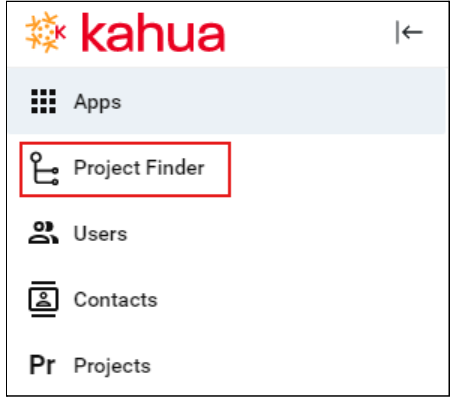
- From the Getting Started page, click Project Finder in the launch bar on the left side of your screen.
- Navigate to the proper delegated partition in your regional partition:
- Click GSA in the breadcrumb trail.
- Next, click the desired Region in the Name column.
- Click Delegated Projects in the Name column.
- Click your agency’s sub-folder, and click the Open button. The agency partition is now shown as the project location in the blue header at the top of the window. If no agency sub-folder is listed, contact Kahua Support at kahuasupport@gsa.gov.


- Click Project Finder in the launch bar again.
- Click the New button in the log actions toolbar to open the Create a Project form. If the listed Project Location is correct, click the Next button.
- Populate all required fields and other applicable information in the project creation form:
- Short Project Name – Include that this is a cyclical project. The short name will be combined with the City, State, and Building to become the Project Name.
- Description – Narrative detailing the purpose of the project. Include the project estimate amount.
- Project Type – Select “Other”
- Project Subtype – Select “Delegated Building Projects”
- Scope Indicators – If desired, select items that are part of the project.
- Building – Select the applicable building. You can type in the building number or the building name.
- Project Manager – Select the agency Project Manager. The assigned individual will automatically have access to the project and will be able to edit the project record.
- Property/Facility Manager/Lease Administration Manager – Select the GSA Facility Manager.
- Project Executive/Sponsor – Select the GSA regional Delegation Manager, who will route the project for approval within GSA.
- Agency Bureau – Type in the number or the agency name
- In the References section, click the Upload button to upload attachments, as needed.
- Click the Save button at the bottom of the window to create the project. When the screen refreshes, make note of the project number in the log view.
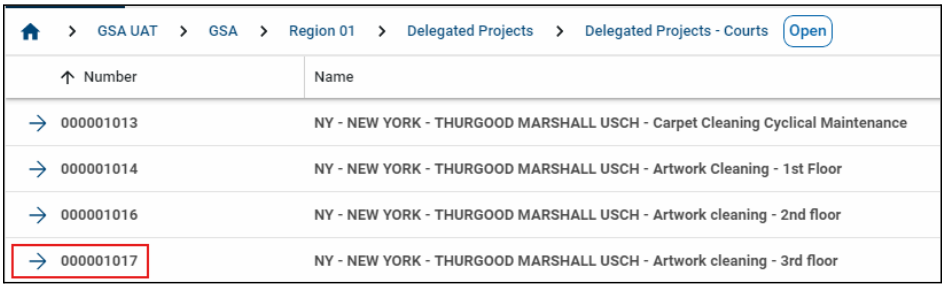
- The next step is to notify the GSA personnel that the project is ready for review.
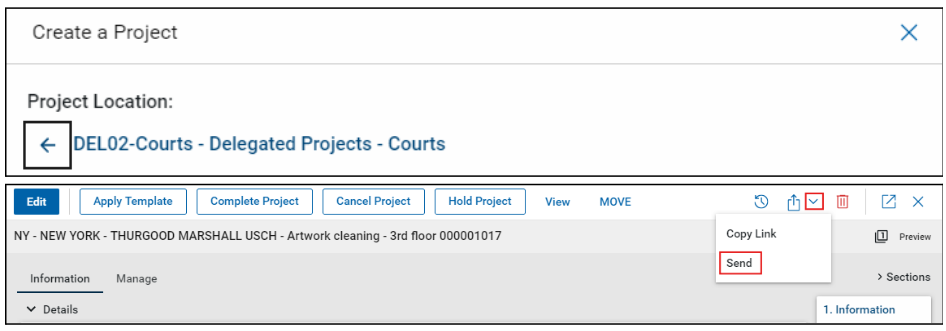
- Click the project name to open it in the right pane. Click the caret next to the arrow icon and choose Send.
- In the To field, select the name of the Delegation Manager and the GSA Facility Manager.
- Click the Copy to Communications box. This will store a list of all messages sent in the project record.
- Type the Project Name and Project Number in the Subject line.
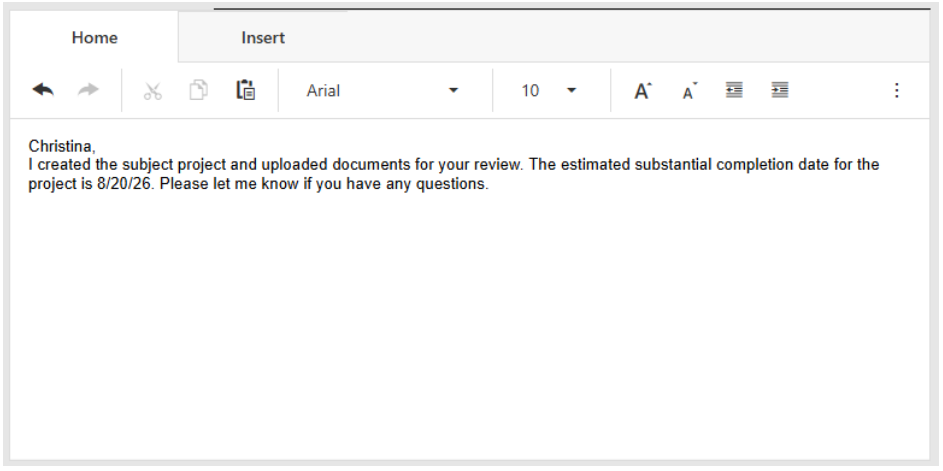
- In the body of the message, let the Delegation Manager and Facility Manager know the project has been created, documents are uploaded, and the project is ready for GSA review and approval.
- In the References section, upload attachments if necessary.
- Click the Send button.


 U.S. General Services Administration