About the Kahua account request form
The Kahua account request form is used to submit account requests for internal and external users, including contractors and client agency personnel. Once a request is submitted, it is reviewed by the regional Kahua program manager.
Submit a Kahua account request
- Go to the Kahua account request form.
- Complete the form:
- Select a User Type.
- Enter the Request Date.
- Enter your First Name.
- Enter your Middle Initial. Enter NMN if you do not have a middle name.
- Enter your Last Name.
- Enter your Email Address. If you are a contractor with a gsa.gov email address, use your GSA email address in the field.
- Enter the name of your Full Company Name/Agency. If you are a contractor, make sure to list your contracting company name here.
- If you are a contractor, select a value in the Is your company a prime contractor or subcontractor on this project field.
- Enter your Work Phone number.
- Enter your Cell Phone number, if desired.
- External users: in the GSA Project Manager Email Address field, enter the email address of the GSA Project Manager who manages the project that you wish to view. Note: If you need access to more than one project, provide the email for one GSA Project Manager for your initial Kahua account. After your account has been established, contact the remaining GSA Project Managers to be granted permission to access additional projects. If you are an external PM managing a project on behalf of GSA, enter your sponsor’s email address.
- External users: Enter the Project Name of the project that you wish to view.
- External users: Enter the Kahua Project Number of the project that you wish to view.
- External users: Enter the Project Location (City, State) of the project that you wish to view.
- Select the appropriate GSA Organization.
- Describe your Project Role. For example: Budget Analyst, Planning Manager, Construction Manager (CMa), Architect/Engineer (A/E), or General Contractor.
- Put a check mark in the I certify that the request is being submitted by the named user box.
- If applicable, put a check mark in the I will be using Kahua for a Lease Project box.
- Put a check mark in the I Certify that the named user has obtained or is initiating a HSPD-12 security status box.
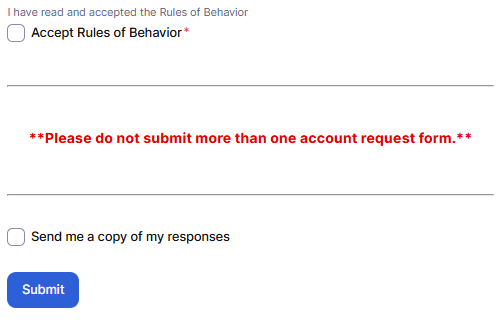
- Review the Rules of Behavior, and put a check mark in the Accept Rules of Behavior box.
- Put a check mark in the Send me a copy of my responses box, if desired.
- Click the Submit button.
Notification: A notification is sent to the regional Kahua Program Manager with a prompt to review the user’s request.
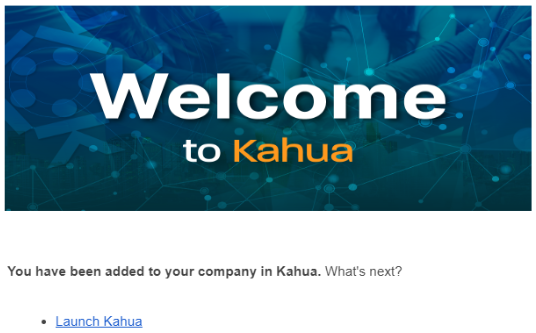
- After your account has been created, you will receive an email from Kahua (outbox@kahuafn.com) with the subject “Welcome to Kahua” and a link to “Launch Kahua.” You can now log into Kahua.
External Users will also receive an email from Kahua support with login information and creating a login.gov account or adding your Kahua email address to your existing login.gov account.
Once your account is licensed, be sure to login every 90 days. Kahua accounts that have been inactive for more than 90 days will be removed. Once an account is removed, end users will no longer have the ability to access Kahua and will need to contact Kahua support to obtain a new license if access is needed.
Report a change in company or agency
If you have changed company or agency, please contact kahuasupport@gsa.gov so the support team can change your affiliation in Smartsheet.
Report a change user name or email address
If you have changed your last name or email address, please contact kahuasupport@gsa.gov so the support team can change your affiliation in Smartsheet.


 U.S. General Services Administration