Create a base schedule for an employee as time administrator
Changes to an employee’s normal work schedule should be approved prior to the change occurring.
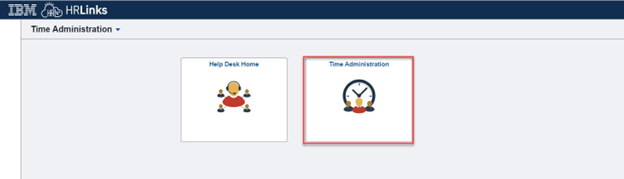
From the Employee Self Service home page, select the drop-down at the top of the screen, and choose Time Administration.
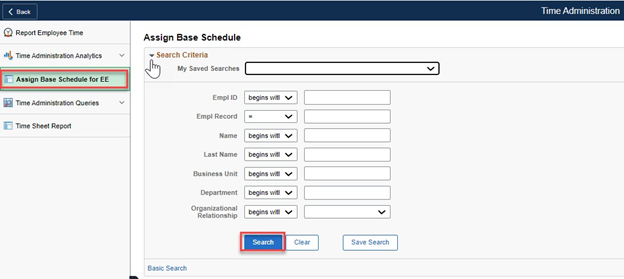
Choose the Assign Base Schedule for EE tab from the left menu. Enter search criteria for the employee whose base schedule you are creating. Select Search.
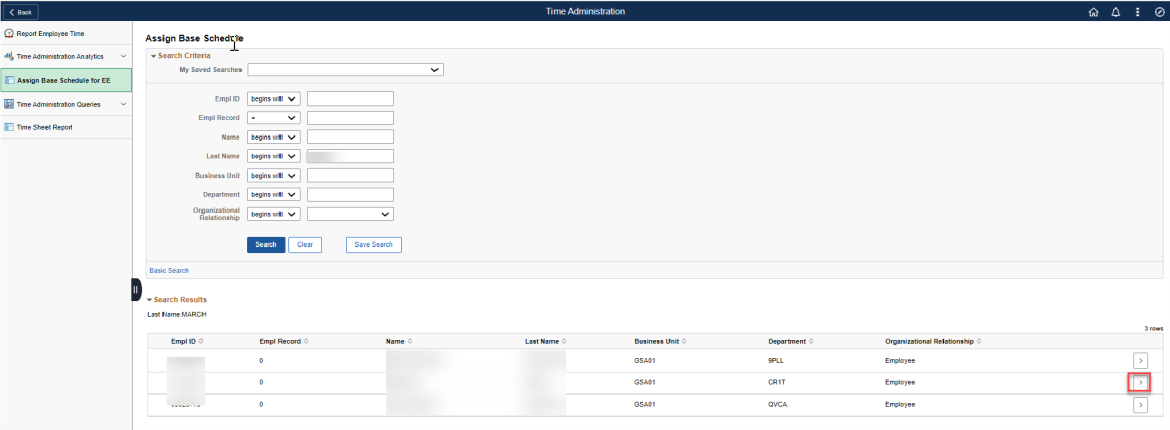
If more than one employee populates in results, select the > icon on the far right of the employee list to open the base schedule. If only one employee populates the results, their base schedule will automatically open.
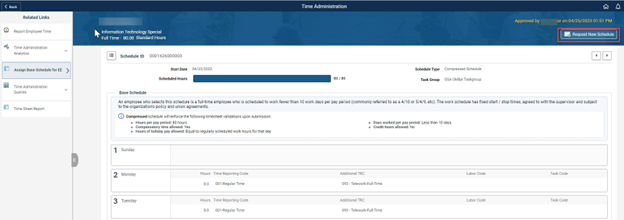
The employee’s current base schedule will open up. Select Request Base Schedule. Note: To view a history of the employee’s base schedules, click the menu icon.
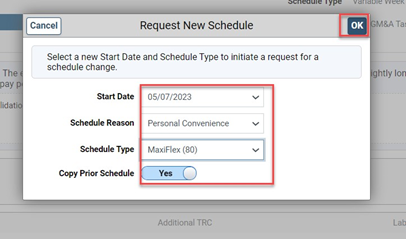
- On the Request New Schedule pop up window, enter the:
- Start Date: Select the date you’d like to start the new schedule. Contact your Time Administrator if you need to create a new base schedule with a start date in a prior pay period.
- Schedule Reason: Reason you are making a base schedule change.
- Schedule Type: Choose a work schedule type for this base schedule.
- Copy Prior Schedule: Select ‘Yes’ If you want to create the new schedule by copying over the hours, time reporting codes, and labor hours from the previous work schedule.
Select OK.
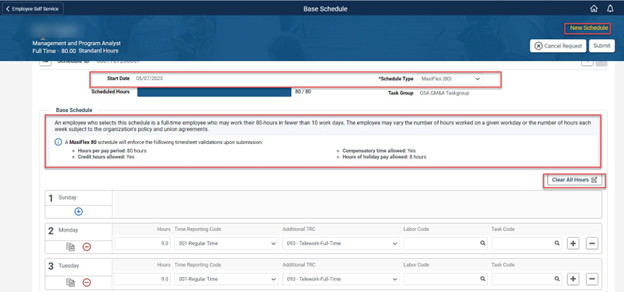
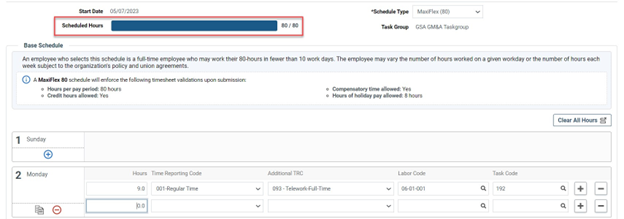
The new, ‘requested’ base schedule will now display on the Base Schedule homepage. You can confirm the Start Date and Schedule Type on the page. The ‘rules’ of the requested base schedule are displayed. If you copied the previous schedule to the new one, you can Clear All Hours to input new Hours into the schedule.
On the Base Schedule page, you can change the schedule by directly using:
| Timesheet item or icon | Purpose |
|---|
| Switch to day off |
| Switch to work day |
| Copy the schedule day to other day(s) in the pay period |
| Add or delete a row on the schedule |
| Hours | Enter the number of hours you are scheduled on that day |
| Time reporting codes | Enter TRC (typically 001 – Regular Time) |
| Additional TRC | Enter additional TRC (for example, a telework code) |
| Labor code | Enter labor code (if applicable) |
| Task code | Enter task code (if applicable) |
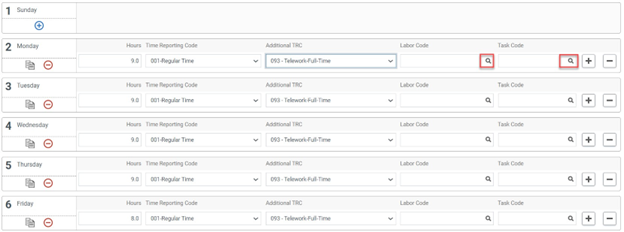
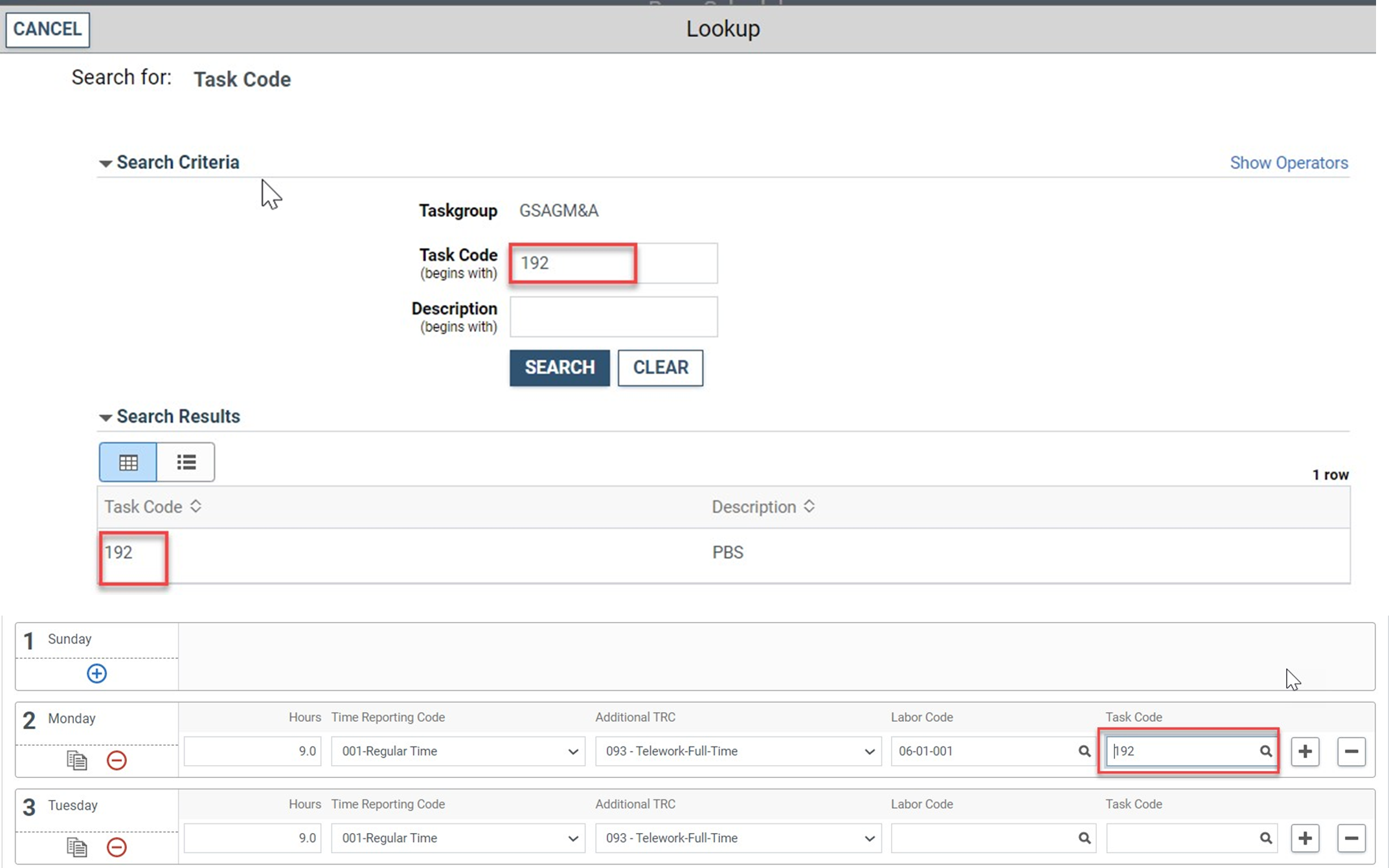
Not all organizations are required to include labor and task codes in their schedules. However, if your employee is a Public Building Service (PBS) employee, you are required to include labor and task codes in their base schedule and can change existing codes or add new ones by entering the numeric portion of the code into designated fields on the schedule. If you do not have the numeric codes you need, you can select the magnifying glass icon next to each field to search for them.
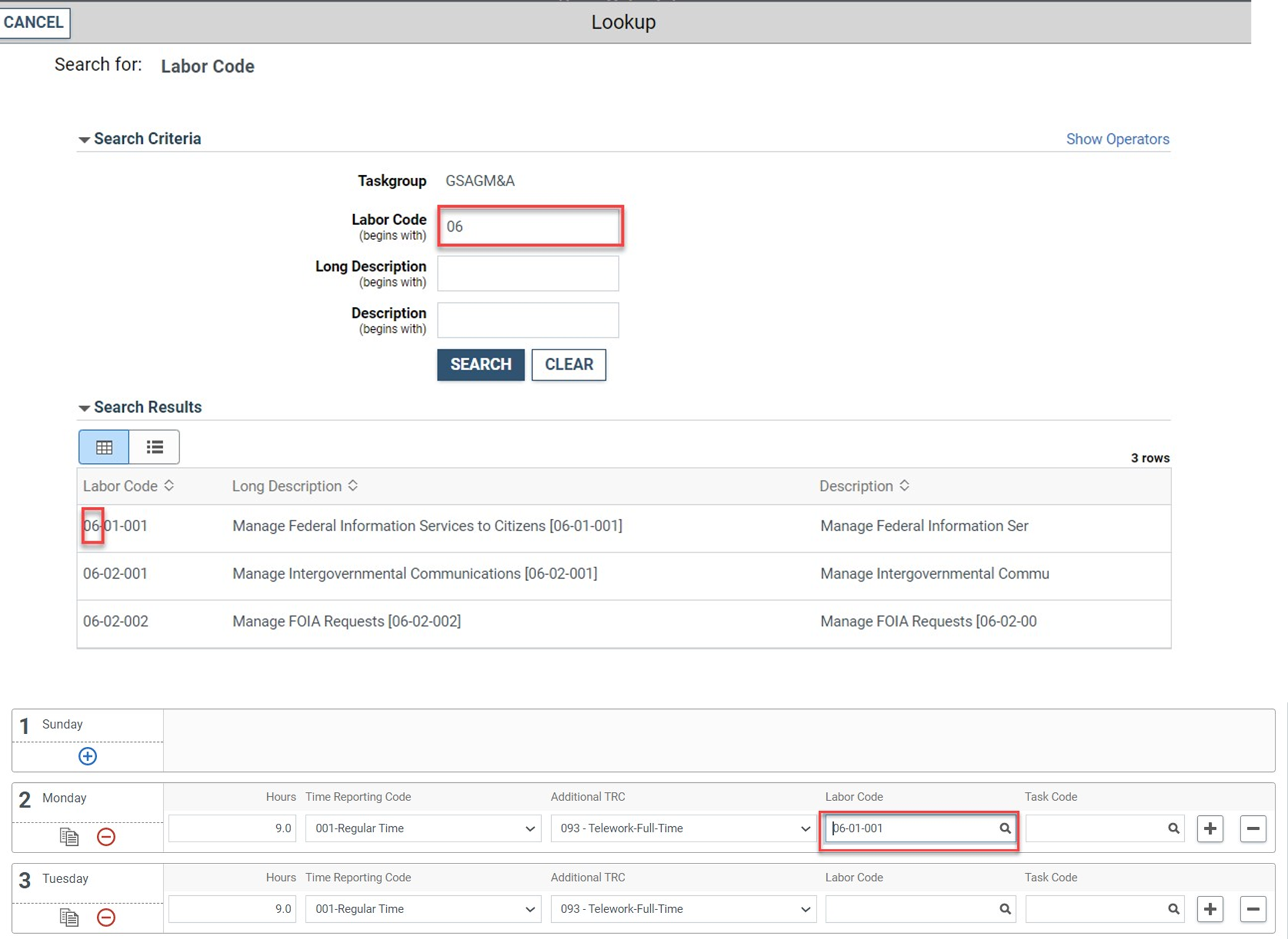
The Look Up Labor Code screen will appear with a list of codes to choose from, and you can narrow your search by entering criteria such as the first few digits or letters of the code or description. Your Labor Administrator can assist you with any questions you have regarding labor codes.
Once a Labor Code is selected, you can enter or search for a Task Code using the method described above.
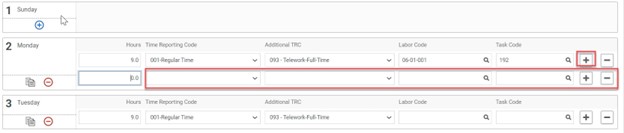
Additional rows can be added to capture multiple Labor and Task Codes for a single day by clicking the plus sign (+) on the far right-hand side of any row (day) in question. To remove an added row, simply select the minus (-) sign.
Once you have made all desired changes to the base schedule, check to make sure Total Hours equal the total hours allowable for your base schedule.
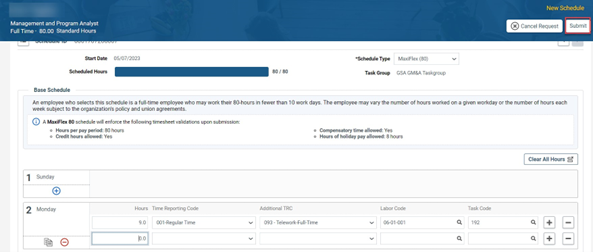
Next, select the Submit button at the top right of the page to submit and approve your employee’s base schedule.
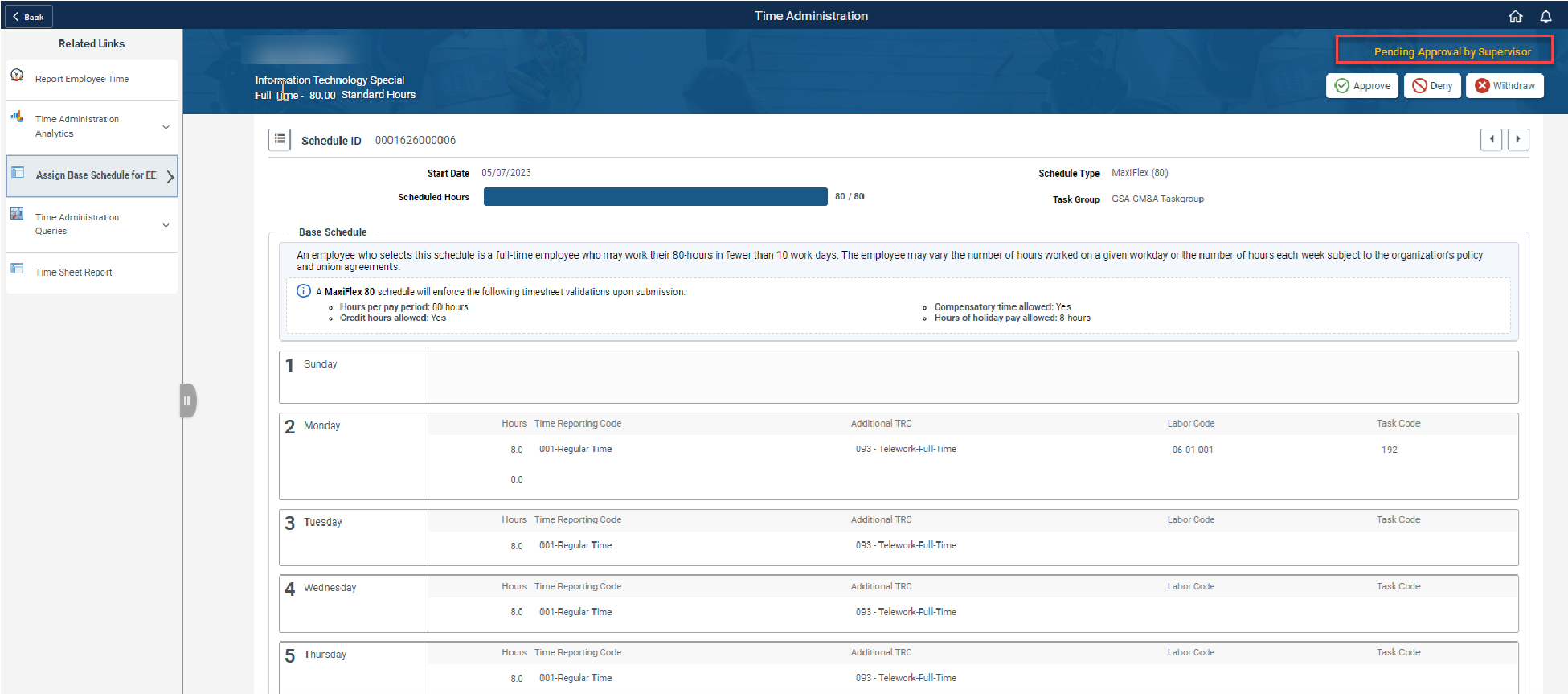
You have successfully created the employee’s base schedule for approval. The base schedule is pending approval by the supervisor. Note: As a time administrator you also have the option to approve the base schedule on behalf of the supervisor; deny the base schedule on behalf of the supervisor; or withdraw the base schedule on behalf of the supervisor. However, the supervisor has the primary role, responsibility, and authority for approving leave requests, new base schedule requests and certification of time records.
Approve a base schedule for an employee
In this scenario, you are approving a base schedule that an employee has created and submitted for review and approval. The supervisor has the primary role, responsibility, and authority for approving leave requests, new base schedule requests and certification of time records.
From the Employee Self Service home page, select the drop-down at the top of the screen, and choose Time Administration.
Choose the Assign Base Schedule for EE tab from the left menu. Enter search criteria for the employee whose base schedule you are creating. Select Search.
If more than one employee populates in results, select the > icon on the far right of the employee list to open the base schedule. If only one employee populates the results, their base schedule will automatically open.
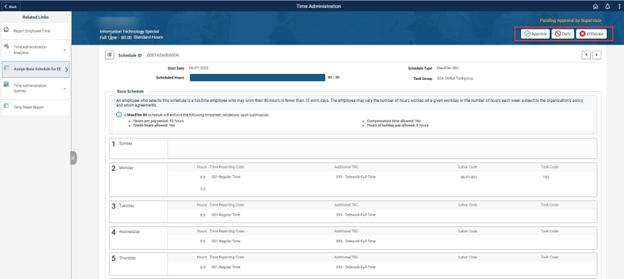
The employee’s pending base schedule will display. You can choose to either Approve, Deny, or Withdraw the requested schedule. Select Approve.
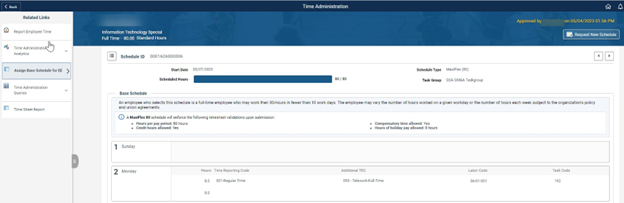
You have successfully approved the employee’s base work schedule.


 U.S. General Services Administration