Follow this job aid to learn how to edit overtime, comp time, and credit hours in HR Links.
Edit overtime from employee time requests tile
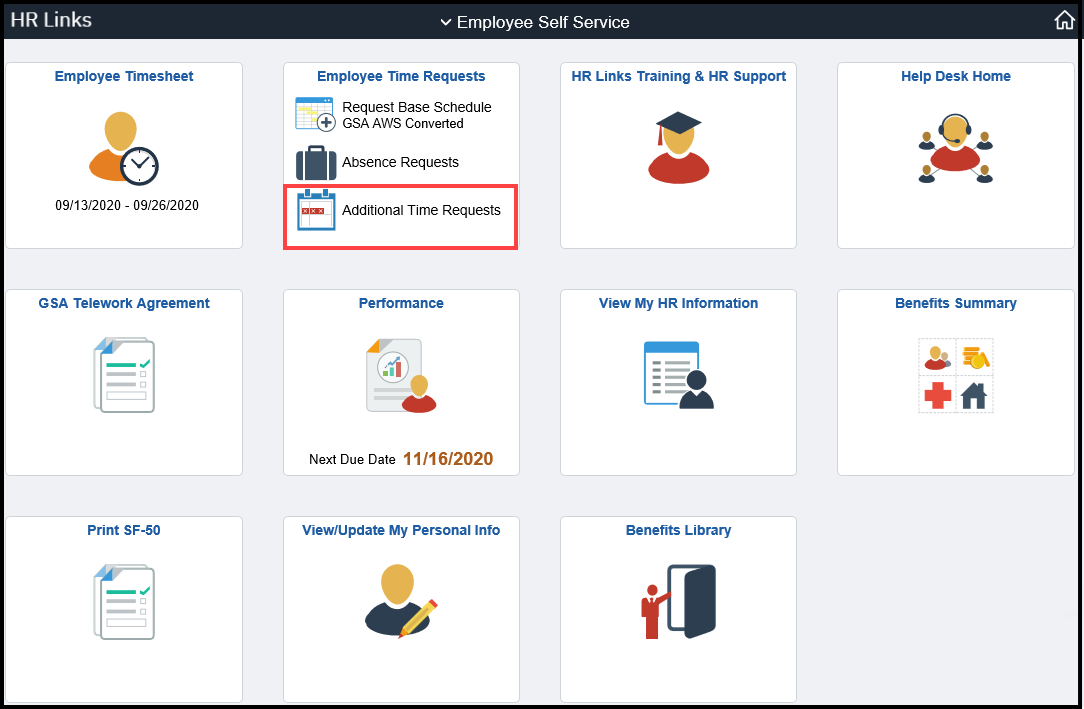
Select Additional Time Requests from the Employee Time Requests tile on the Employee Self Service homepage.
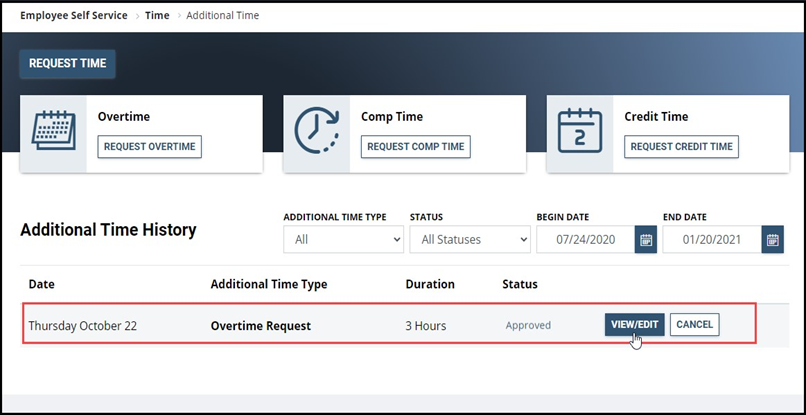
- Find the Overtime Request you would like to edit under the Additional Time History section. Select View/Edit for that specific overtime request.
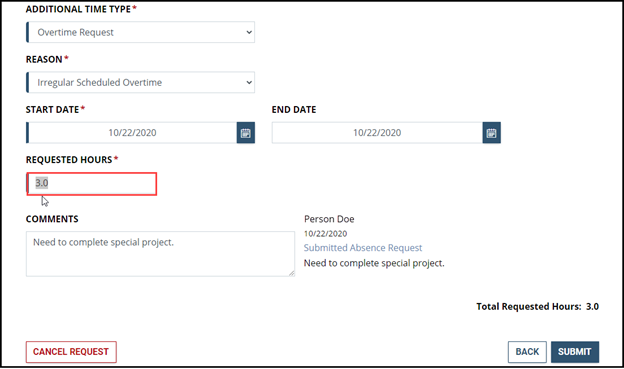
On this page you can 1) Edit Start/End Date by selecting the calendar icon or type in the new Start and/or End Date you want; 2) Select a new Additional Time Type (if applicable); and/or 3) edit the number of Requested Hours desired. In this example, the Requested Hours will be changed from 3.0 to 5.0 hours.
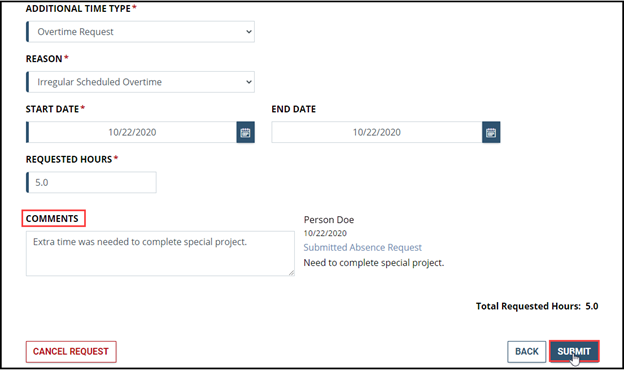
Once the Requested Hours have been changed, the Total Requested Hours are automatically recalculated. If desired, you can edit or add information to your request in the Comments section. Then select Submit.
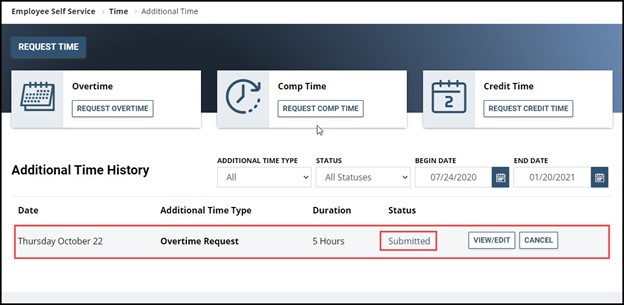
You will return to the Request Time screen. The request you edited will have a Status of Submitted and is now awaiting your supervisor’s approval.
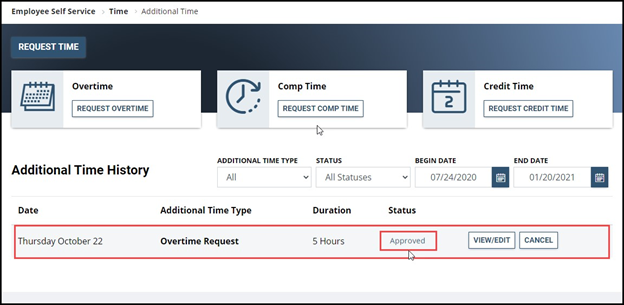
Once the edited overtime request is approved by your supervisor, the Status will be updated to Approved. You are all set!
Edit comp time earned from employee time requests tile
Select Additional Time Requests from the Employee Time Requests tile on the Employee Self Service homepage.
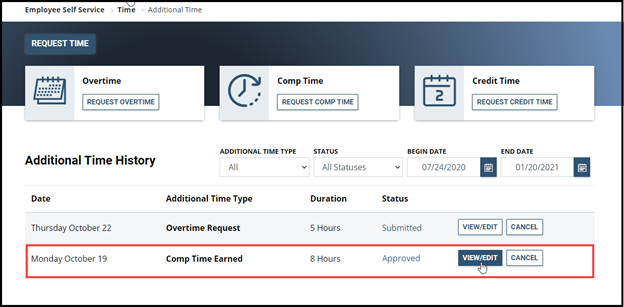
- Find the Comp Time Earned Request you would like to edit under the Additional Time History section. Select View/Edit for that specific overtime request.
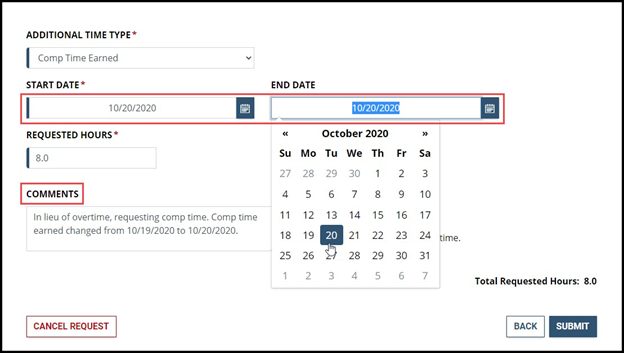
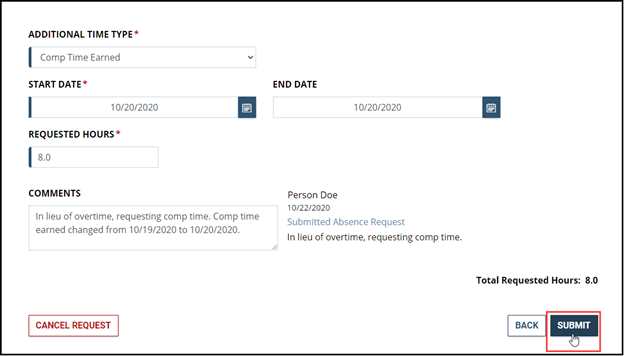
On this page you can 1) Edit Start/End Date by selecting the icon or type in the new Start and/or End Date you want; 2) Select a new Additional Time Type (if applicable); and/or 3) edit the number of Requested Hours desired. In this example, the Start Date and the End Date will be changed from Monday October 19, 2020 to Tuesday October 20, 2020. If desired, you can edit or add information to your request in the Comments section.
Once you have made the necessary changes, select Submit.
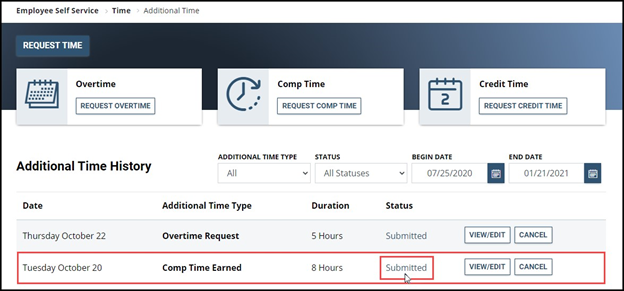
You will return to the Additional Time screen. The request you edited will have a Status of Submitted and is now awaiting your supervisor’s approval.
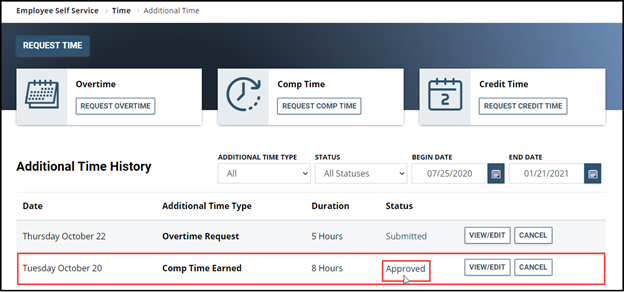
Once the edited Comp Time Earned request is approved by your supervisor, the Status will be updated to Approved. You are all set!
Edit credit hours earned from employee time requests tile
Select Additional Time Requests from the Employee Time Requests tile on the Employee Self Service homepage.
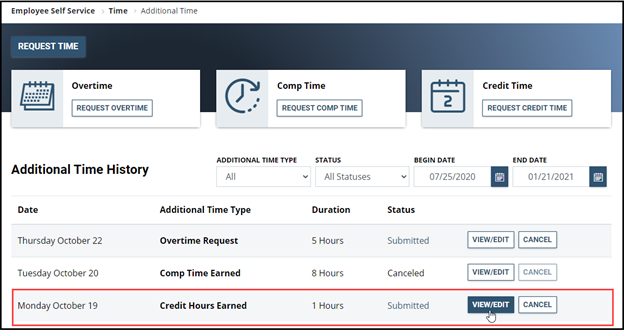
- Find the Credit Hours Request you would like to edit under the Additional Time History section. Select View/Edit for that specific overtime request.
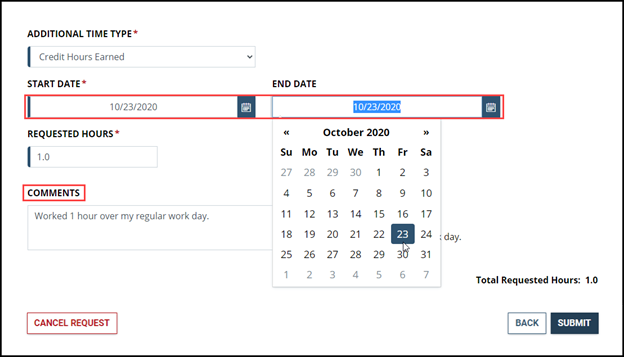
On this page you can 1) Edit Start/End Date by selecting the calendar icon or type in the new Start and/or End Date you want; 2) Select a new Additional Time Type (if applicable); and/or 3) edit the number of Requested Hours desired. In this example, the Start Date and the End Date will be changed from Monday October 19, 2020 to Friday October 23, 2020. If desired, you can edit or add information to your request in the Comments section.
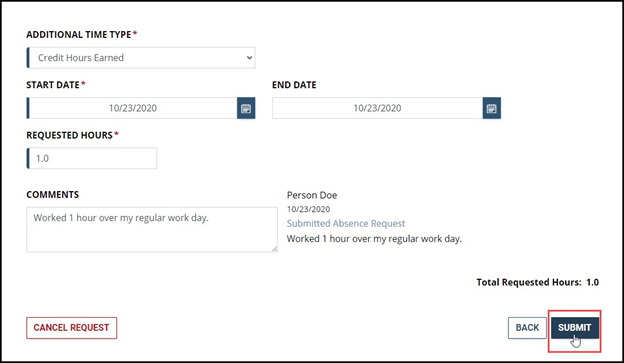
Once you have made the necessary changes, select Submit.
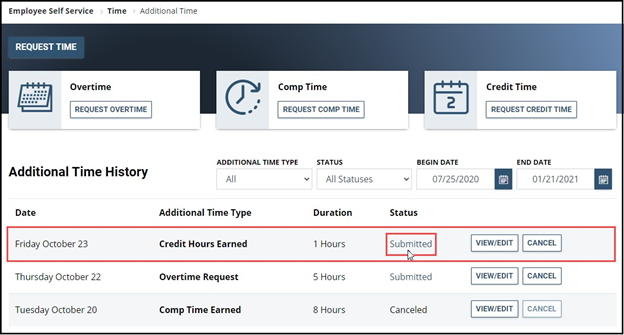
You will return to the Additional Time screen. The request you edited will have a Status of Submitted and is now awaiting your supervisor’s approval.
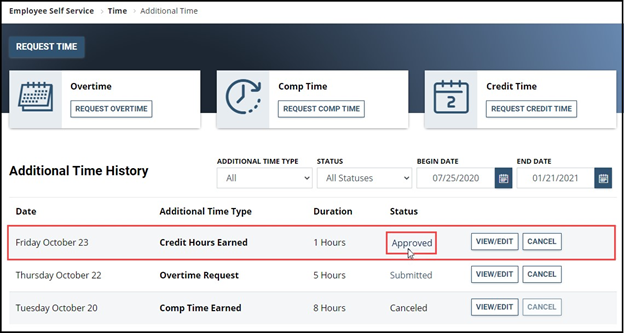
Once the edited Credit Hours Earned request is approved by your supervisor, the Status will be updated to Approved. You are all set!


 U.S. General Services Administration