Follow this job aid to learn how to Approve Absence Requests as a Supervisor once you have received notification in HR Links of a request from your employee. Note: If you are a 2nd level supervisor who is approving absence requests on behalf of a subordinate supervisor, refer to the 2nd section of this guide. You won’t receive a notification when the leave request is submitted.
Approving absence requests from approvals tile
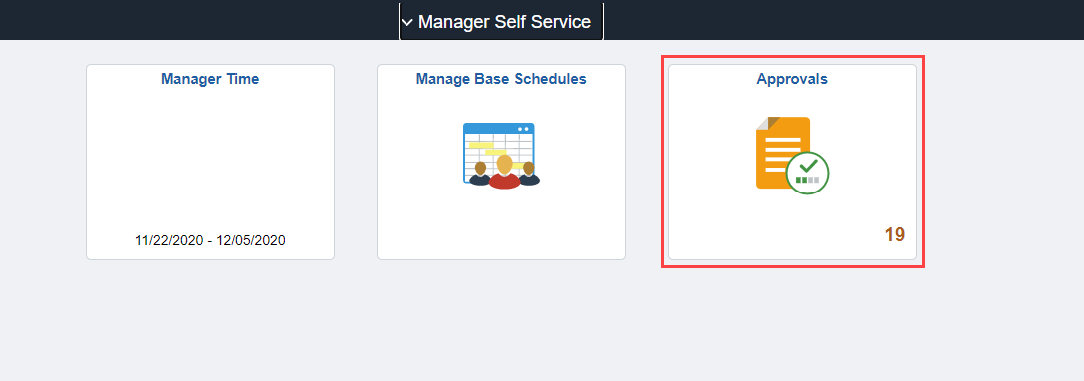
Select the Approvals tile from the Manager Self Service homepage.
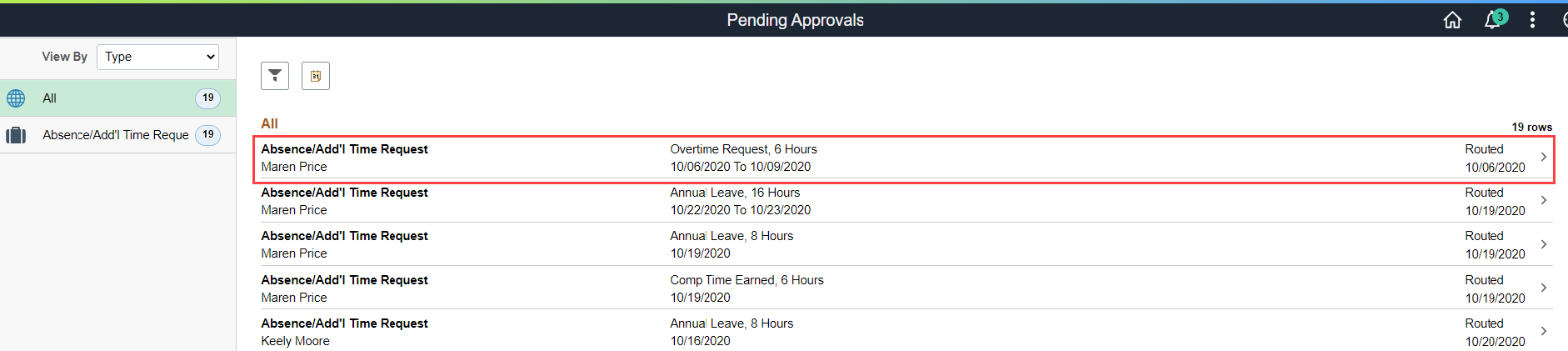
Select the Absence Request row of the employee for whom you want to approve an Absence Request.
Review the request. Select Approve to approve the request.
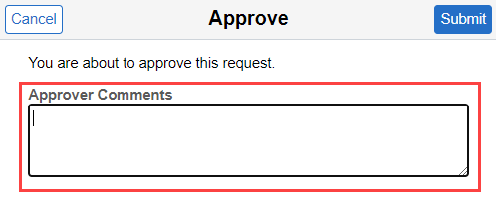
Enter any approver comments if necessary.
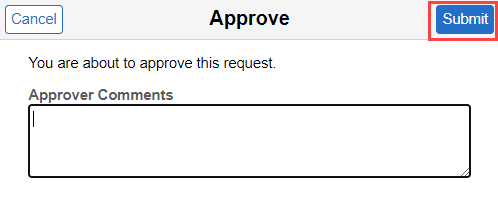
Select the Submit button.
A green banner stating “You have approved the request” will appear at the top of your screen.
Congratulations! You have successfully approved an absence request in HR Links!
Approving absence requests from the manager time tile
Please follow these instructions if you are a 2nd level supervisor approving absence requests.
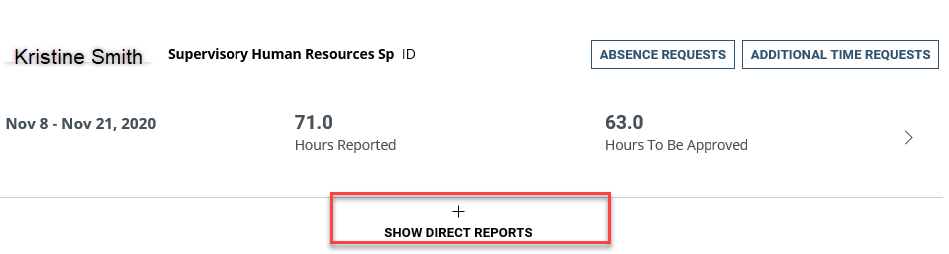
Select the Manager Time tile from the Manager Self Service homepage. Select the manager’s timesheet and then select “show direct reports”.
Select the Absence Requests Button.
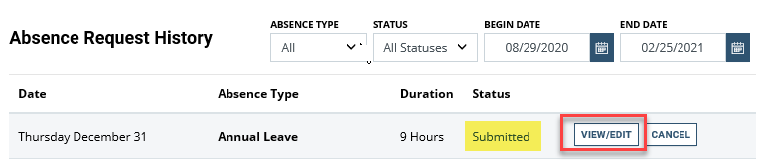
Select the View/Edit button on the line of the absence request that has “Submitted” status.
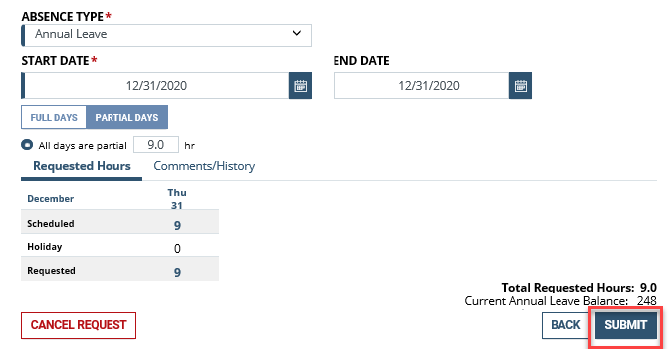
Select “submit” to approve the absence request.


 U.S. General Services Administration